

Inside TikTok LIVE Studio: Every Feature Explained
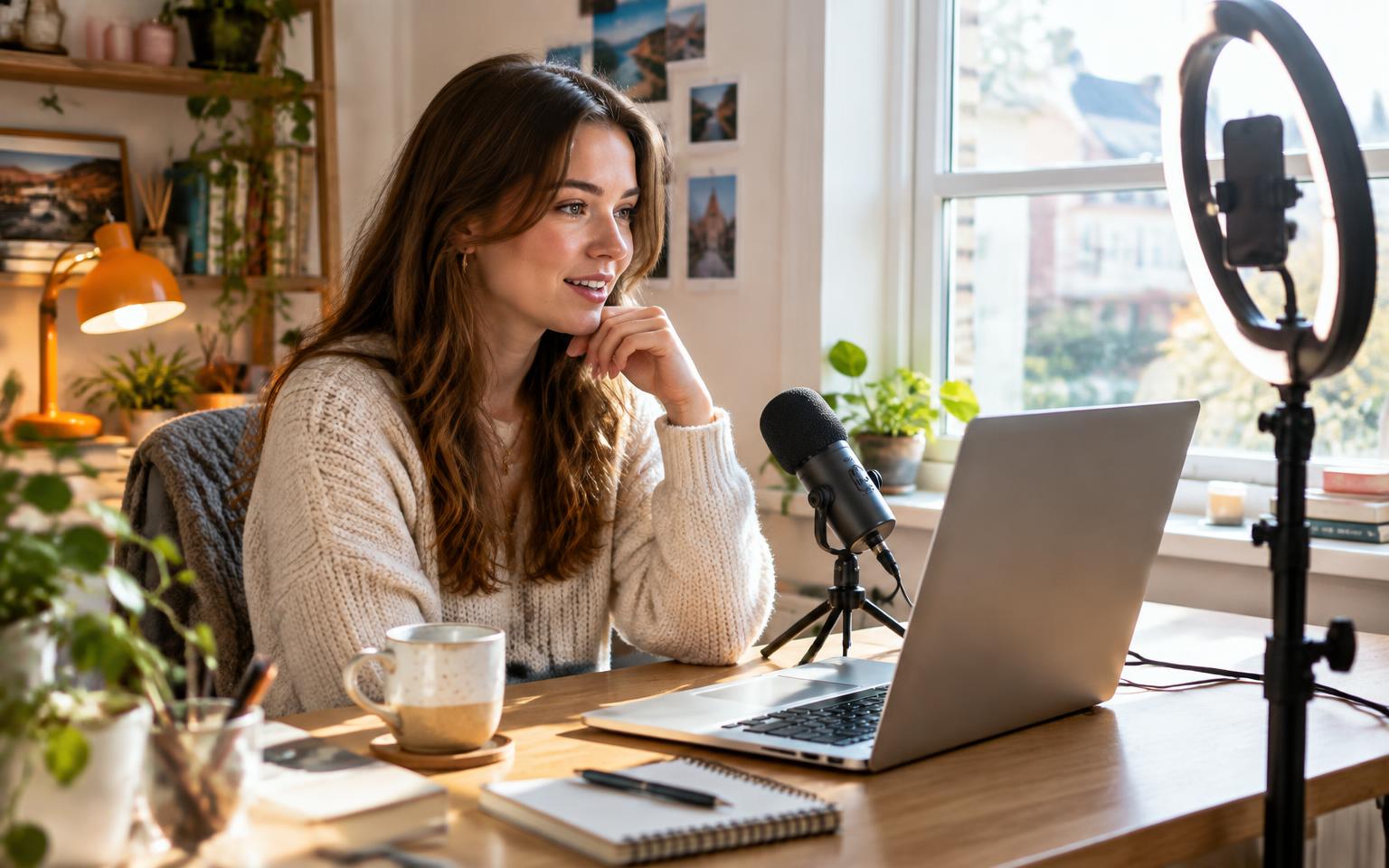
TikTok LIVE Studio is TikTok's own free streaming software for your computer. It lets you go live with a proper camera, a proper microphone, your screen or your games, all signed in with your normal TikTok account.
Most guides list the buttons. This one does that too, but we also tell you which features matter for the kind of LIVE you actually do, and share the simple setup our creator managers give new desktop streamers. If you only need to get started, jump to the two-scene starter kit.
Key takeaways
- TikTok LIVE Studio is a free desktop app for Mac and Windows. You sign in with your TikTok account; no stream key is needed.
- You still need LIVE access on your account. Downloading LIVE Studio does not unlock going live.
- Everything is built from scenes (what viewers see) and sources (the camera, screen, text and images inside a scene).
- LIVE Studio is where you broadcast. LIVE Center is where you manage settings, check your numbers and moderate.
- For most chatting creators, two portrait scenes and a good microphone beat any amount of effects.
What TikTok LIVE Studio is (and what it isn't)
LIVE Studio is a broadcasting app. You install it on a laptop or desktop, log in, build what your stream looks like, and press go. Your viewers watch in the TikTok app exactly as they would any other TikTok live. Nothing changes for them except, hopefully, better sound and picture.
It is not a way around eligibility. If your account cannot go live from the phone app, it usually cannot go live from LIVE Studio either. Our guide to TikTok LIVE access explains how access works and how to apply.
It is also not a hardware guide. If you want to stream an Xbox or PlayStation, or you are deciding on a capture card or webcam, read TikTok LIVE on PC and Xbox. This article is about the software itself.
Phone or LIVE Studio: which should you use?
This is the question we get asked most, and the honest answer is that plenty of creators do brilliantly from a phone. LIVE Studio earns its place when you need something the phone can't do well. Use this as a quick check.
| Your type of LIVE | Our suggestion | Why |
|---|---|---|
| Chatting, Q&A, getting to know viewers | Phone is fine. Move to LIVE Studio when you want better sound. | Viewers come for you, not the production. A clear voice matters more than overlays. |
| Gaming on PC | LIVE Studio | Game capture and layouts are built for it, and your phone can't show your game properly. |
| Console gaming | LIVE Studio with a capture card | The capture card source brings in your console picture and sound. |
| Music, DJ or performance | LIVE Studio | You can use a proper audio interface and microphone instead of the phone's mic. |
| Tutorials, art or showing your screen | LIVE Studio | Display and window capture show exactly what you're working on. |
| Out and about, IRL | Phone | A laptop doesn't travel. Keep LIVE Studio for home streams. |
Downloading and setting up LIVE Studio on Mac and Windows
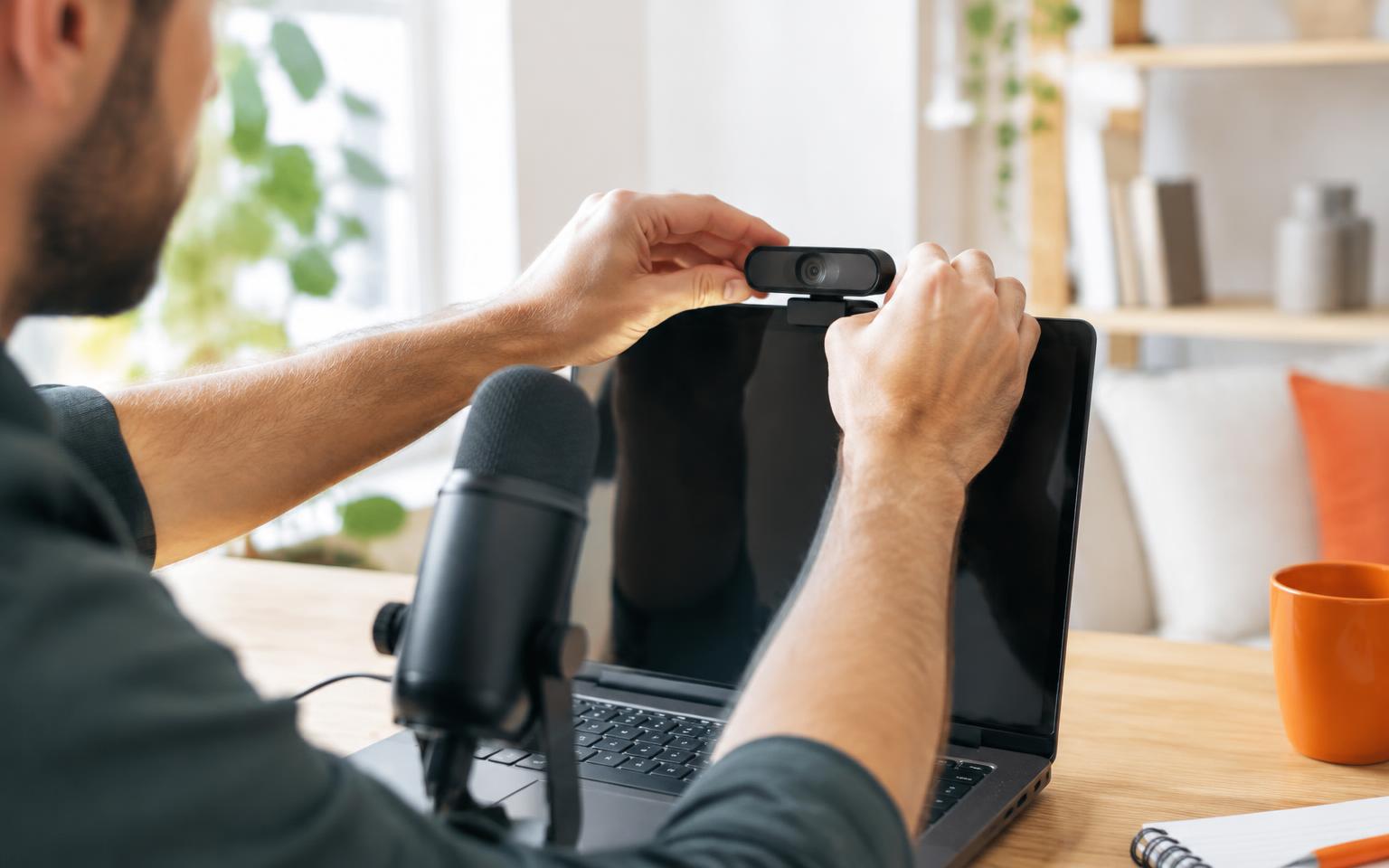
- 01Download it from TikTok only. Use the official LIVE Studio page. Avoid download sites that bundle it; you are signing in with your TikTok account, so only trust the real installer.
- 02Install and open it. Versions exist for both macOS and Windows.
- 03Log in with your TikTok account. Scanning the QR code with the TikTok app on your phone is usually the quickest way.
- 04Run the setup. It asks what kind of LIVE you do, then helps you pick your microphone, camera and video quality.
- 05Import if you've streamed elsewhere. If you've used other streaming software, there's an option to bring some settings across.
When it asks about video quality, let it test your connection and take its suggestion. Upload speed, not download speed, is what matters for streaming. A slightly lower quality that never freezes is better than a sharp picture that keeps dropping.
Every LIVE Studio feature, explained simply
Scenes
A scene is what your viewers see. Think of it as one page of your show. You can make several and switch between them during the LIVE, for example a camera-only scene for chatting and a game scene for playing.
Layouts: portrait, landscape and dual
Portrait fills a phone screen, which is how most people watch TikTok. Landscape suits widescreen content like PC games. Dual lets you build both, so viewers can turn their phone and still get a good view. If you're not gaming, start with portrait.
Sources
Sources are the things you place inside a scene. You move, resize and stack them like layers. The main ones are:
- Camera: your webcam or camera.
- Game capture: a game you're playing, at good quality.
- Display capture: your whole computer screen.
- Window capture: just one app window, so nothing else on your screen is shown.
- Capture card: picture and sound from a games console.
- Cast: your phone screen, shared to the stream.
- Text and images: your name, a goal, a schedule, a logo or a frame.
Effects and dynamic effects
LIVE Studio includes video filters, camera effects and sound effects. Dynamic effects combine several of these into one click, such as zooming in on your face with a sound when something big happens. They are fun used sparingly. Used constantly, they become noise.
Co-host, multi-guest and battles
The same interactive features you know from the phone, including inviting guests and battling other creators, can be used from LIVE Studio. TikTok suggests a stronger computer if you use these a lot, because extra video feeds take more power.
Preview as a viewer
When editing a scene, you can preview how it looks inside the TikTok app, including where the app's own buttons and comments sit on top. Always check this. It's the easiest way to spot text hidden behind the comment area.
LIVE Studio vs LIVE Center (and LIVE Manager)
These names confuse almost everyone, partly because TikTok has renamed things over time. The simplest way to remember it:
| LIVE Studio | LIVE Center | |
|---|---|---|
| What it is | Desktop app for broadcasting | Your hub for managing LIVE |
| Where you use it | Mac or Windows computer | Inside your TikTok account |
| Used for | Scenes, sources, camera, sound, going live | Settings, LIVE analytics, moderation and community tools |
| Older name | None | LIVE Manager on some accounts |
In practice you'll use both. Go live from LIVE Studio, then review how it went and adjust your moderation settings in LIVE Center. If you sell through TikTok Shop, the Shop side has its own LIVE selling tools, which work differently again.
The two-scene starter kit we give new desktop creators
When a dopa creator moves to LIVE Studio, we don't start with templates and effects. We start with two scenes. It's enough to look professional, and simple enough that you're never fiddling mid-stream.
Scene 1: Main
- Portrait layout, camera filling the frame at eye level.
- One small line of text: your name or tonight's goal.
- Nothing in the bottom third, where comments appear in the app.
Scene 2: Be right back
- A still image or simple background with "Back in two minutes".
- Your microphone muted, so a door slam or phone call isn't broadcast.
Only add a third scene, such as a game or screen-share, when you have a real reason to use it every stream. Each extra scene is one more thing that can go wrong while people are watching.
A 10-minute check before your first desktop LIVE
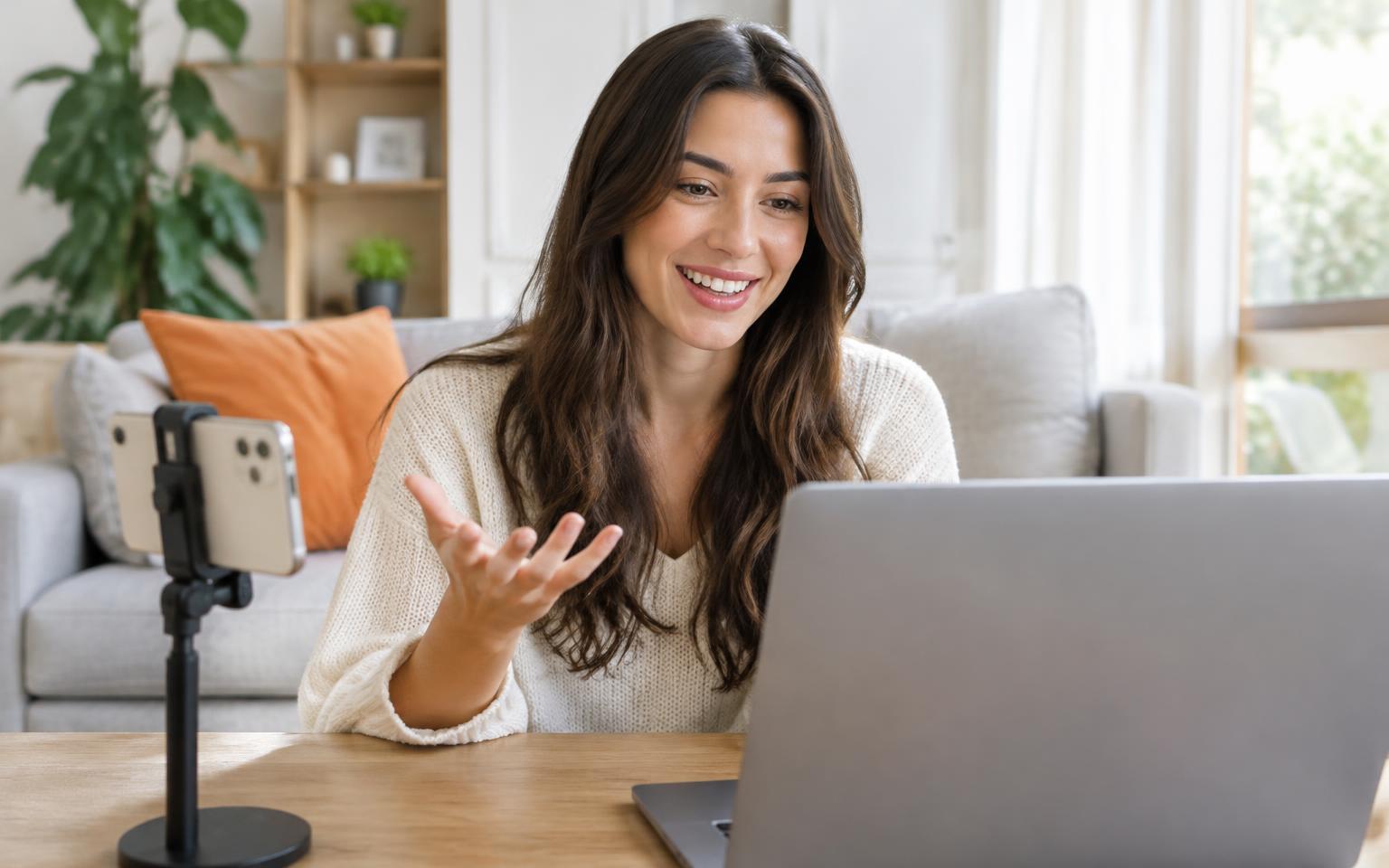
Most problems on a first desktop stream are small and avoidable. This is the routine our managers walk creators through before they go live from a computer for the first time.
- 01Sound first. Speak normally and watch the microphone level move. Make sure it's your proper mic selected, not the laptop's built-in one.
- 02Camera height. Raise the laptop or camera so the lens is at eye level. Looking down into a laptop is the most common thing we fix.
- 03Light from the front. Face the window or a lamp. A bright window behind you turns you into a silhouette.
- 04Preview as a viewer. Check nothing important sits under the comments or buttons.
- 05Close everything else. Shut other apps and browser tabs, especially if you're using display capture, so nothing private appears on screen.
- 06Have your phone ready. Keep TikTok open on your phone to read comments and see what viewers see.
- 07Know your exit. Find the end LIVE button before you start, so you're not hunting for it at the end.
If something still goes wrong, our TikTok LIVE troubleshooting guide covers the usual fixes.
Common LIVE Studio mistakes we see
- Using landscape for a chatting LIVE. You end up small in the middle of a phone screen. Use portrait unless you're showing a game.
- Too much on screen. Goals, alerts, frames, tickers and effects all at once. Viewers can't find your face.
- Sharing the whole screen by accident. Use window capture instead of display capture when you only need one app.
- Building scenes during the LIVE. Set everything up before you go live, then leave it alone.
- Chasing production over consistency. A regular time slot does more for growth than a perfect setup. See what TikTok LIVE is and how it works for the basics behind that.
Frequently asked questions
- What's the difference between TikTok LIVE Studio and LIVE Center?
- LIVE Studio is the desktop app you broadcast from. LIVE Center, previously called LIVE Manager on some accounts, is where you manage settings, view LIVE analytics and moderate your community.
- Is TikTok LIVE Studio available on Mac?
- Yes. LIVE Studio has official versions for both Mac and Windows.
- Is TikTok LIVE Studio free?
- Yes. It's TikTok's own free desktop streaming software.
- Can I use custom overlays in LIVE Studio?
- Yes. You can add your own images and text to a scene, such as branded frames, goals or a schedule, and arrange them however you like.
- Do I need a stream key to use LIVE Studio?
- No. You log in with your TikTok account. Stream keys are only needed for third-party software such as OBS.
- Why can't I go live from LIVE Studio?
- The most common reason is that your account doesn't have LIVE access yet. Downloading the software doesn't grant access on its own.
Sources
Keep reading
TikTok LIVE Explained: The Complete 2026 Guide
What TikTok LIVE is, who can host it, how Gifts and Diamonds work, and why brands and agencies are pouring money into livestreaming.
How to Go Live on TikTok: Step-by-Step Guide (Phone, PC and as a Guest)
The exact steps to start a TikTok LIVE from your phone or desktop, how to join someone else's stream as a guest, and what to do when the TikTok LIVE button is missing.