

TikTok LIVE on PC, Xbox & Other Devices: Full Streaming Setup Guide
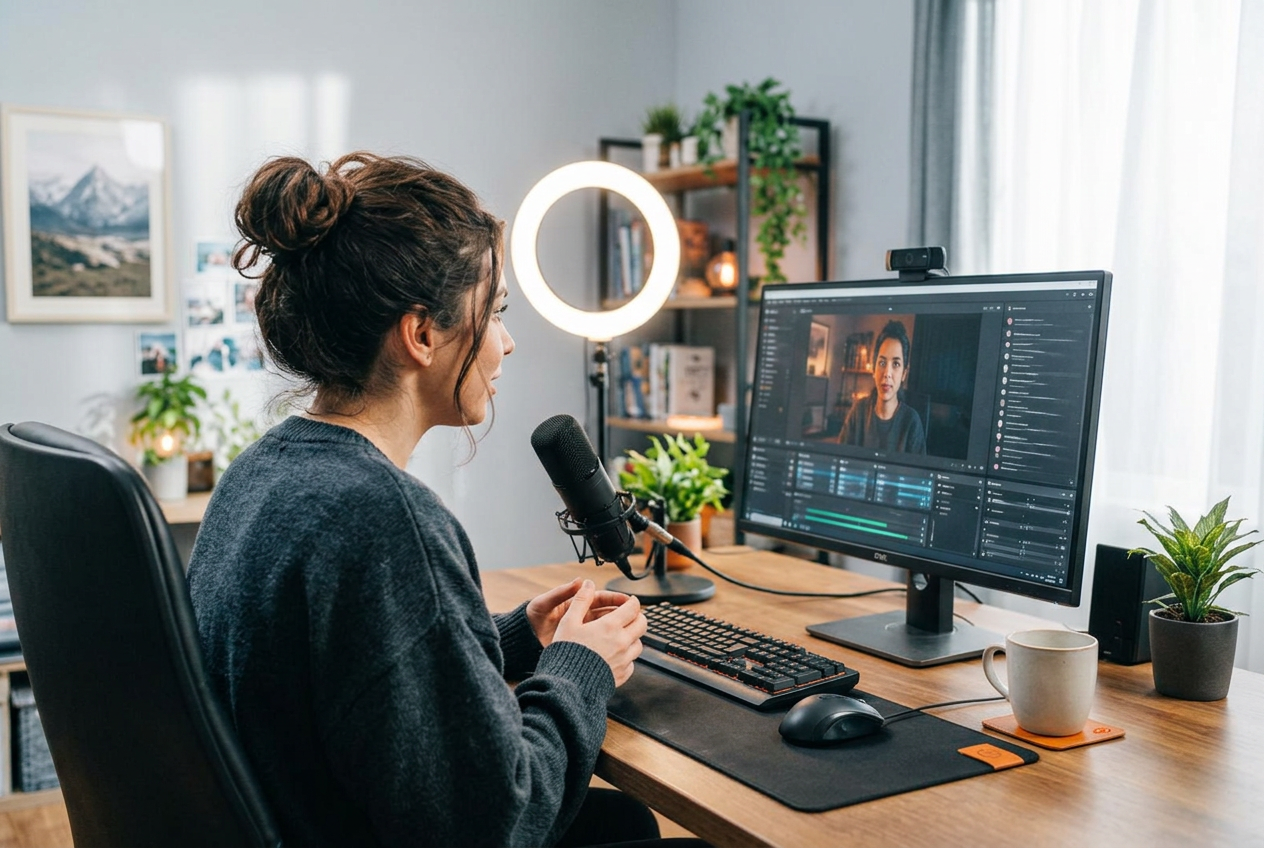
Most people start TikTok LIVE on their phone, and plenty never need anything else. But once you want better sound, a steadier picture, gameplay or on-screen overlays, a PC starts to make sense.
This guide covers how to go live on TikTok on PC, how TikTok LIVE Studio and stream keys work, how console creators stream from Xbox and PlayStation, and what tablets and TVs can and cannot do.
Key takeaways
- You go live on TikTok on PC with TikTok LIVE Studio, TikTok's own desktop streaming app.
- Some eligible accounts can get a stream key to use third-party software like OBS, but it is not available to everyone.
- There is no TikTok LIVE app on Xbox or PlayStation: console creators stream through a PC with a capture card.
- Tablets work like a phone, with the same eligibility rules as the mobile app.
- You still need to meet TikTok's LIVE eligibility, whatever device you stream from.
Can you go live on TikTok on PC?
Yes. If your account is eligible to host a TikTok LIVE, you can stream from a Windows computer using TikTok LIVE Studio. The rules are the same as on mobile: you need to meet the age and follower requirements before hosting unlocks. If you are not there yet, start with our guide to how many followers you need to go live on TikTok.
| Device | How you go live | Best for |
|---|---|---|
| Phone | TikTok app | Chatting, IRL, first streams |
| Tablet | TikTok app | Bigger screen for reading comments |
| Windows PC | TikTok LIVE Studio | Gaming, overlays, better audio |
| PC with stream key | OBS or similar | Advanced setups, if eligible |
| Xbox / PlayStation | Capture card into a PC | Console gameplay |
How to go live on TikTok on PC with TikTok LIVE Studio
TikTok LIVE Studio is TikTok's free desktop streaming app. It captures your webcam, screen, game or microphone and sends it straight to your TikTok LIVE, with chat and Gifts visible on screen.
- 01Download TikTok LIVE Studio from TikTok's official site and install it on your Windows PC.
- 02Log in with the same TikTok account you host from on your phone.
- 03Add your sources: webcam, microphone, a game window or your full screen.
- 04Choose portrait or landscape. Portrait fills a phone screen and suits most TikTok LIVE viewers.
- 05Write a clear title, pick a topic, then press Go LIVE.
TikTok stream keys and OBS
A stream key lets you use third-party software such as OBS instead of TikTok LIVE Studio. TikTok offers stream keys to some eligible accounts only, and access can vary by region and account. If you do not see the option, LIVE Studio is the supported route.
- Never share your stream key. Anyone with it can stream to your account.
- Regenerate it if you think it has leaked.
- Avoid sites selling stream keys. They are scams and put your account at risk.
Can you go live on TikTok on Xbox or PlayStation?
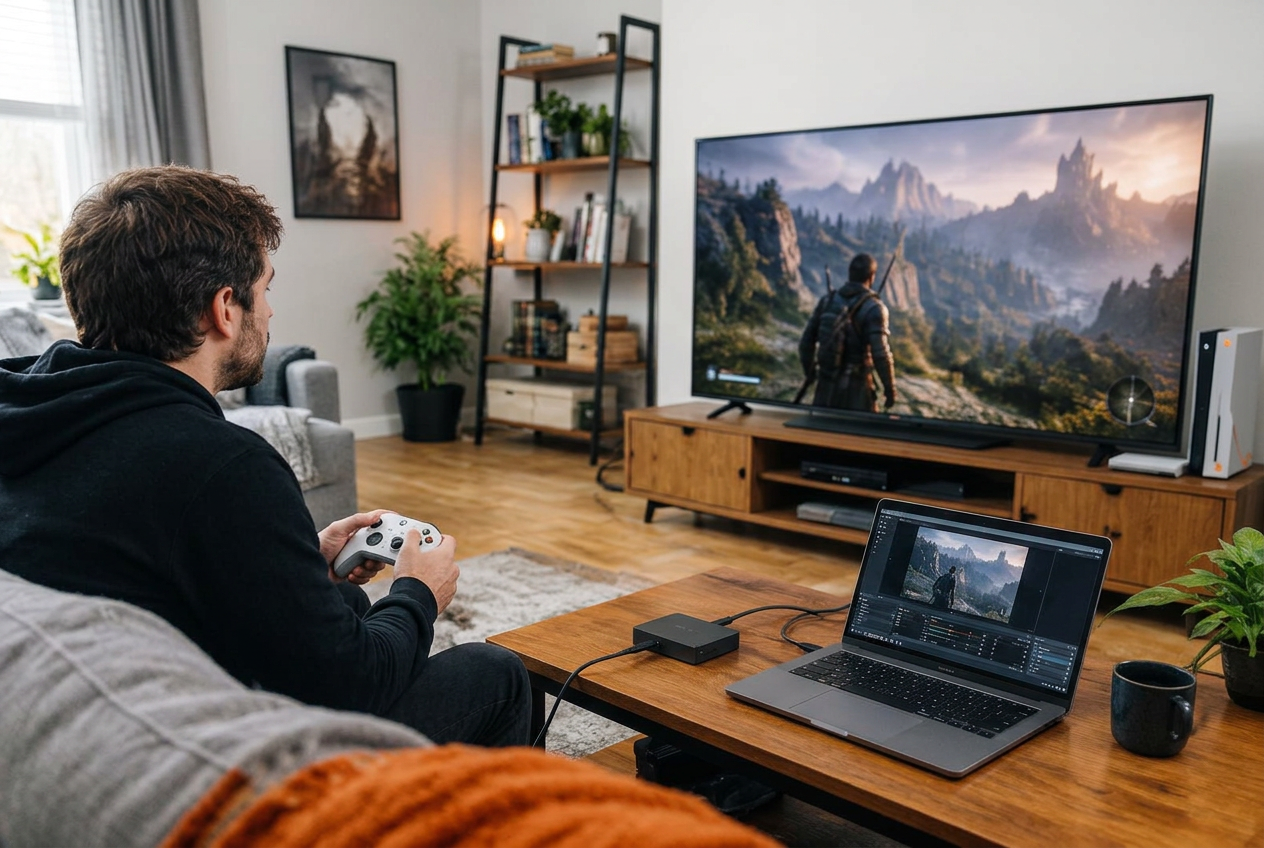
Not directly. There is no TikTok LIVE app on Xbox or PlayStation. Console creators use a capture card: the console feeds into the card, the card connects to a PC, and TikTok LIVE Studio streams the gameplay alongside your webcam and microphone.
- 01Connect your console's HDMI output to a capture card.
- 02Connect the capture card to your PC, and pass the signal through to your TV so you can play without lag.
- 03Add the capture card as a source in TikTok LIVE Studio.
- 04Add your webcam and microphone, then go live.
Tablets, TVs and Mac
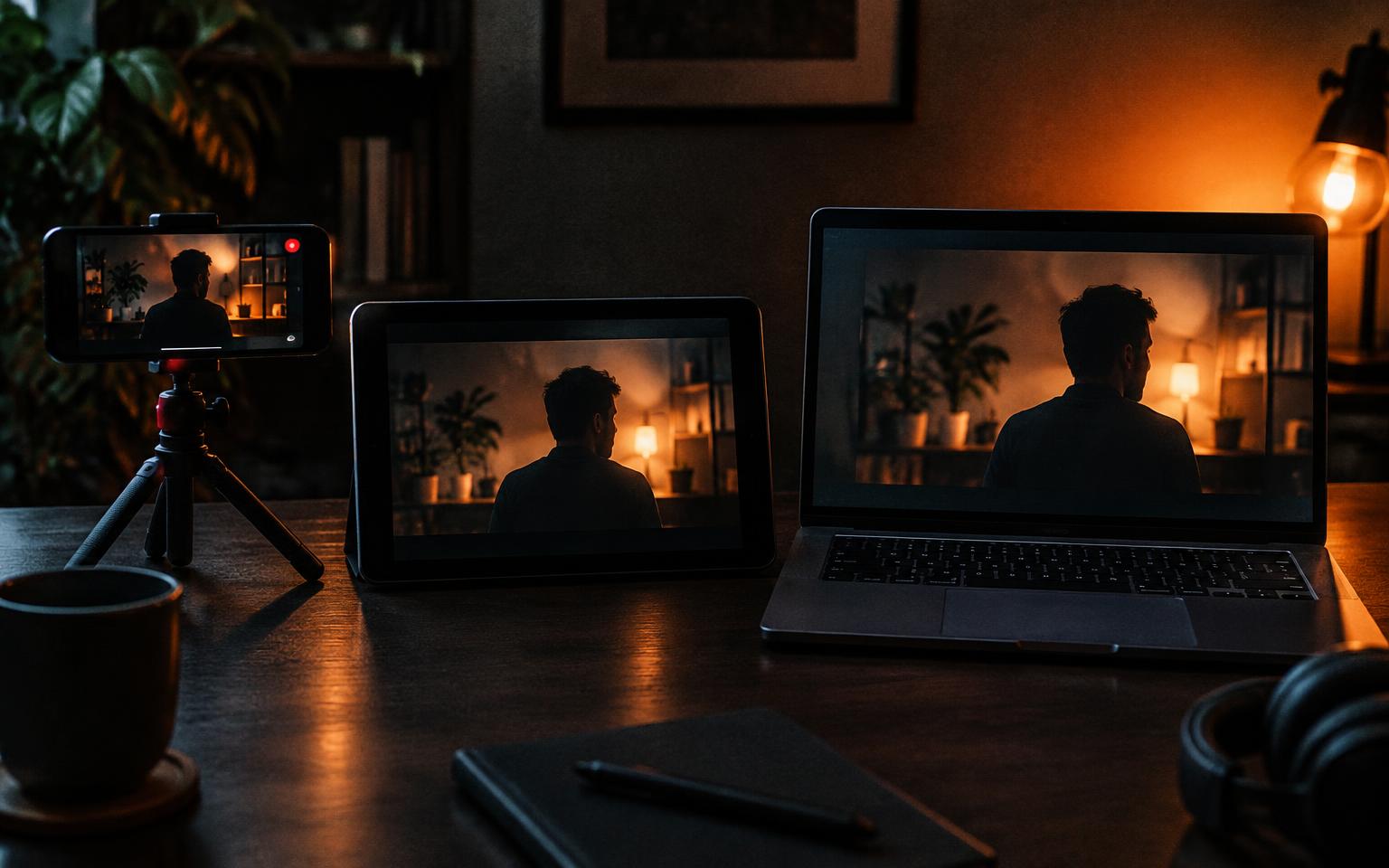
Tablets run the normal TikTok app, so going live works exactly as it does on a phone. The bigger screen makes comments easier to read. Smart TVs can be used for watching TikTok LIVE, not hosting. Mac users should check TikTok's official site for current LIVE Studio support, as availability has changed over time.
Which device should you stream from?
Start where you are. A phone on a tripod with good light beats an expensive PC setup you have not learned yet. Move to PC when you need gameplay, overlays or better audio. For the full phone walkthrough, read our step-by-step guide to going live on TikTok.
The setup is the easy part. What keeps viewers is a plan, a schedule and practice. That is where a TikTok live agency like dopa helps: coaching, a creator community and training in the app, whichever device you stream from. You can apply here.
Frequently asked questions
- How do you go live on TikTok on PC?
- Download TikTok LIVE Studio on a Windows PC, log in with an eligible account, add your webcam, microphone or game as sources, and press Go LIVE.
- Can you go live on TikTok on PC without 1,000 followers?
- No. PC streaming uses the same eligibility rules as the app. If you cannot host on your phone, you cannot host from LIVE Studio either.
- How do I get a TikTok stream key?
- Stream keys are offered to some eligible accounts only. If you have access, it appears in your LIVE settings. Never buy or share one.
- Can you go live on TikTok on Xbox?
- Not directly. Use a capture card to send your Xbox gameplay to a PC running TikTok LIVE Studio, then stream from there.
- How do you join a TikTok LIVE on PC?
- Open TikTok in your web browser, go to the LIVE section and pick a stream. You can watch and comment from a computer.
Sources
Keep reading
TikTok LIVE Explained: The Complete 2026 Guide
What TikTok LIVE is, who can host it, how Gifts and Diamonds work, and why brands and agencies are pouring money into livestreaming.
How to Go Live on TikTok: Step-by-Step Guide (Phone, PC and as a Guest)
The exact steps to start a TikTok LIVE from your phone or desktop, how to join someone else's stream as a guest, and what to do when the TikTok LIVE button is missing.