

How to Go Live on TikTok: Step-by-Step Guide (Phone, PC and as a Guest)
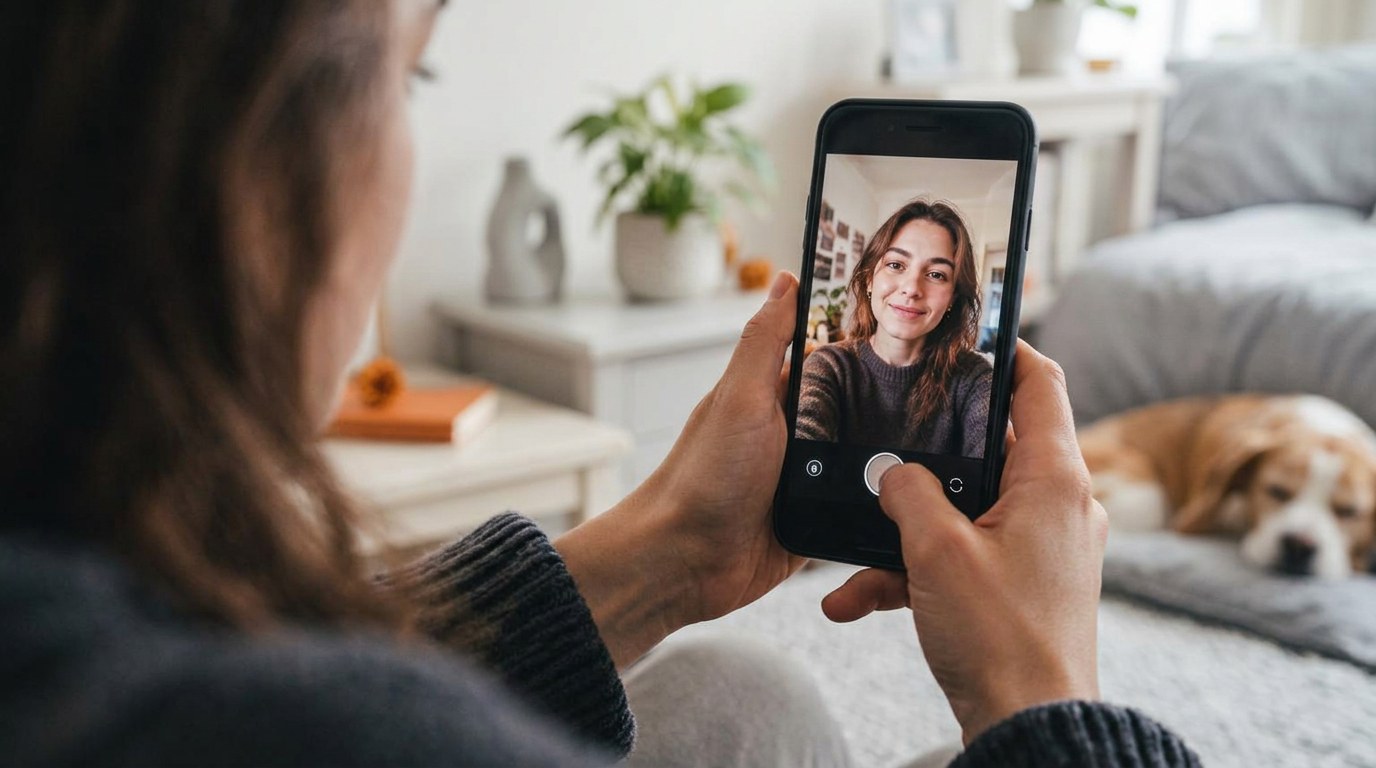
Going live on TikTok takes about four taps. The reason people search for this is almost never the taps. It is the moment the button is not where it should be, or the stream starts and nobody arrives.
So this guide does both. The exact process first, on phone and on desktop, then the checks that make a first stream survivable and the fixes for when the TikTok LIVE option refuses to appear.
Key takeaways
- On mobile: tap the plus, swipe the mode selector to TikTok LIVE, set a title, tap Go TikTok LIVE.
- You must be 18 or over and meet TikTok's eligibility conditions before the TikTok LIVE option appears.
- TikTok LIVE Studio lets you stream from a desktop with overlays, scenes and multiple sources.
- Joining another creator's TikTok LIVE as a guest is the fastest way to get comfortable on camera.
- A missing TikTok LIVE button is usually eligibility, an outdated app, or account standing, in that order.
Check these three things before you start
Two minutes here saves an embarrassing first attempt. Every one of these is a common reason a first TikTok LIVE fails.
- 01Eligibility. You need to be 18 or over, and your account needs to meet TikTok LIVE conditions. See how many followers you need to go live for the thresholds and the regional variation.
- 02App version. Update TikTok from the App Store or Play Store. Missing TikTok LIVE access on an old build is extremely common.
- 03Account standing. Recent Community Guidelines strikes can suspend TikTok LIVE access. Check your account status in Settings before you plan a stream.
How to go live on TikTok from your phone
The process is the same on iOS and Android.
- 01Open TikTok and tap the plus button in the middle of the bottom bar.
- 02Along the mode selector under the record button, swipe across to TikTok LIVE. If TikTok LIVE is not listed, skip to the troubleshooting section below.
- 03Add a title. Be specific: "Answering your questions about starting out" pulls far better than "live chat".
- 04Choose a cover image, set your topic, and check your privacy and comment settings.
- 05Tap Go TikTok LIVE. TikTok counts down and you are broadcasting.
While you are live, the panel at the bottom of the screen gives you moderation tools, filters, guest invites and the option to flip the camera. Learn where the mute and block controls are before your first stream, not during it.
How to go live on TikTok from a PC or Mac
For console streaming, stream keys and the full desktop kit, see our guide to TikTok LIVE on PC, Xbox and other devices.
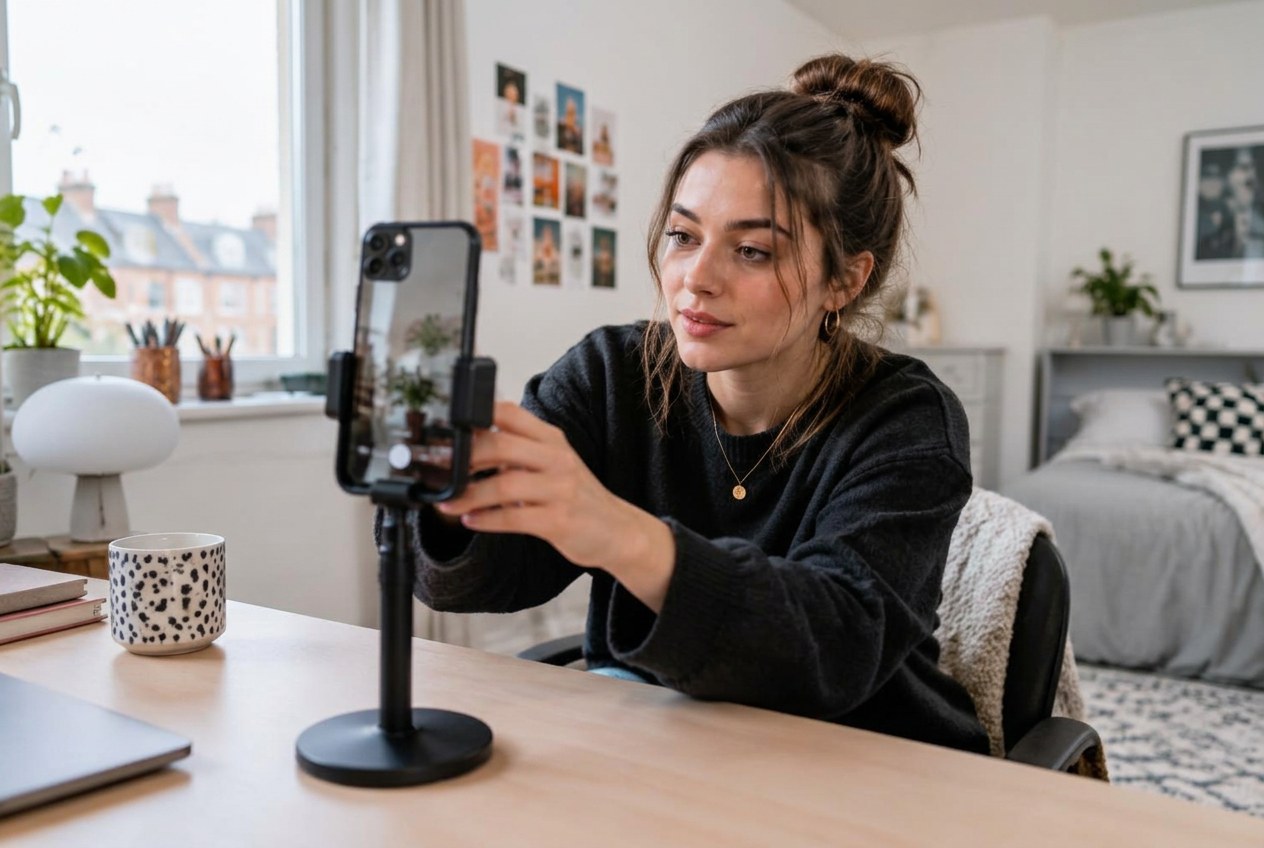
Desktop streaming runs through TikTok LIVE Studio, which is closer to a broadcasting tool than the phone app. You get scenes, overlays, multiple cameras and the option to stream a game or a screen.
- 01Install TikTok LIVE Studio on your computer and sign in with your TikTok account.
- 02Create a scene and add your sources: camera, microphone, screen capture, images.
- 03Set your stream title and topic in the same place you would on mobile.
- 04Check your levels, then start the broadcast.
If you already stream elsewhere with third-party software, the workflow will feel familiar, and the OBS Project documentation is a good grounding in scenes and sources. For most creators starting out, the phone is still the better choice. Desktop adds control and it adds failure points.
How to join someone else's TikTok LIVE as a guest
Guesting is underrated. You get real practice on camera in front of a warm audience without carrying the room yourself.
- In a TikTok LIVE you are watching, tap the guest or co-host icon and request to join. The host decides whether to accept.
- As a host, open the guest panel, then invite a viewer or another creator directly.
- Guest requests can be limited to people you follow, which is the setting most hosts should use.
If you do not know who to guest with yet, that is exactly the problem a creator network solves. dopa matches UK creators for guest spots and battles through a TikTok live creator network built around real schedules.
Making your first stream worth watching
- Plan a 30 minute minimum. Short streams rarely get picked up, because TikTok needs time to find your audience.
- Open by saying what the stream is and repeat it every few minutes. New arrivals never have context.
- Read comments out loud and use names. It is the whole reason people stay.
- Pick a fixed slot and keep it. Two predictable streams a week beat five random ones.
For the wider picture on the format, features and money, start with our complete TikTok LIVE guide.
Frequently asked questions
- Why can't I find the TikTok LIVE button on TikTok?
- Usually eligibility, an outdated app version, or account standing. Check your age and follower eligibility first, then update the app and log out and back in.
- Can I go live on TikTok from a computer?
- Yes, through TikTok LIVE Studio. It mirrors a phone TikTok LIVE but adds overlays, scenes and multi-source support.
- Do I need to schedule a TikTok LIVE in advance?
- No. Scheduling through TikTok LIVE Events is optional, but it sends your followers a reminder notification, which helps the first ten minutes of a stream.
- How long should my first TikTok LIVE be?
- Aim for at least 30 minutes. TikTok needs time to surface your stream to viewers, and very short broadcasts rarely gather an audience.
Sources
Keep reading
TikTok LIVE Explained: The Complete 2026 Guide
What TikTok LIVE is, who can host it, how Gifts and Diamonds work, and why brands and agencies are pouring money into livestreaming.
How Many Followers Do You Need to Go Live on TikTok? (2026 Requirements)
The truth about the 1,000-follower rule, the other gates nobody mentions, and what to do while you are still under the threshold.